

Remember that feeling of dread? The one that creeps in when you see that little blue Windows Update notification? Yeah, me too. It’s not just the inconvenience of a forced reboot at the worst possible moment; it’s the nagging fear that something will go wrong. Again.
Table of Contents
Because let’s be honest, Microsoft has a pretty spotty record updates. And when those updates fail, the consequences can be… unpleasant.
Why a Working Windows Update Matters (A Lot)
Think of your computer as a fortress. Security patches are the guards patrolling the walls, constantly fixing breaches and keeping the bad guys out. Without those guards – without a functioning Windows Update – your fortress is vulnerable. Wide open, in fact. Check out our guide on DJI Drone Hack: $30K Reward for Accidental iRobot Vacuum Breach. We covered this in MacBook Air M5: Everything You Need to Know About Apple’s New Laptop.
That’s because security patches are absolutely critical for protecting your data and privacy. Outdated systems are sitting ducks for malware and exploits. Hackers are constantly finding new ways to break into systems, and these patches are the shields that protect you.
And it’s not just about security. Windows Update also ensures compatibility with new hardware and software. Want to use that fancy new printer? Need to run the latest version of your favorite game? You’ll need those updates. Otherwise, expect things to break… spectacularly.
Imagine your house’s security system suddenly failing. The alarm doesn’t work, the cameras are offline, and the doors won’t lock. That’s like a broken Windows Update. Scary, right?
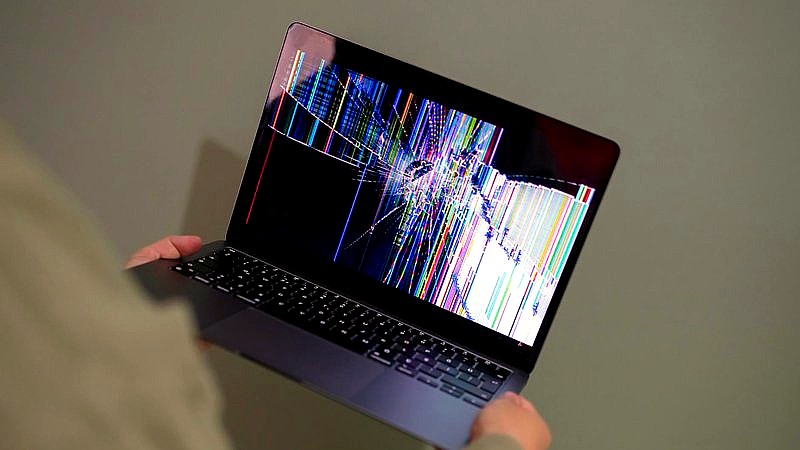
How Microsoft Broke Windows Update (Again)
It feels like we’ve been here before, doesn’t it? Recurring issues with update installations and failures have become almost a defining feature of the Windows experience. One step forward, two steps back. You know the drill.
The inconsistent update quality is a major problem. Sometimes, updates are smooth and . Other times, they lead to system instability, crashes, and a whole lot of frustration. It’s a gamble every time you hit that “update” button.
And the communication? Let’s just say it could be better. Microsoft isn’t always the best at explaining what’s going on, what they’re doing to fix it, or how you can work around the problems. Leaving users in the dark and feeling helpless. Not great.
Ah, the endless reboot loops and cryptic error messages. Who hasn’t experienced the joy of their computer restarting repeatedly, only to be greeted with a message that makes absolutely no sense? It’s enough to make you want to throw your computer out the window. (Please don’t.)
Common Windows Update Errors
- 0x80070002 – File Not Found
- 0x8007000E – Not Enough Memory
- 0x800f0922 – CBS_E_INSTALLERS_FAILED
These are just a few of the many error codes that can plague the Windows Update process. Each one requires its own unique troubleshooting steps, adding to the complexity and frustration.
The Real-World Consequences of Broken Updates
Broken updates aren’t just a minor annoyance. They can have serious real-world consequences. Think lost productivity due to system downtime. Imagine being in the middle of an important project, only to have your computer crash because of a faulty update. Time is money, after all.
There’s also the increased risk of data breaches and security incidents. If you’re not getting the latest security patches, you’re more vulnerable to attack. Hackers love to target outdated systems, and a broken Windows Update is like an open invitation.
And then there are the financial costs associated with IT support and repairs. Paying someone to fix your computer after a botched update can be expensive. Plus, the cost of lost productivity and potential data recovery can really add up.

Perhaps worst of all is the erosion of trust in Microsoft’s update process. How many times can they mess this up before people start looking for alternatives? It’s like the boy who cried wolf. Eventually, people stop believing you, even when there’s a real wolf at the door.
Troubleshooting Common Windows Update Problems
Okay, so your Windows Update is broken. What can you do? Don’t panic. There are a few things you can try.
Run the Windows Update Troubleshooter
Real talk: Windows has a built-in troubleshooter that can automatically detect and fix some common update problems. It’s not a magic bullet, but it’s worth a try. You can find it in the Settings app under “Update & Security” and then “Troubleshoot.”
Check for Corrupted System Files with SFC and DISM
Corrupted system files can sometimes interfere with the update process. The System File Checker (SFC) and Deployment Image Servicing and Management (DISM) tools can help you scan for and repair these files. To run them, open a command prompt as an administrator and type sfc /scannow followed by DISM /Online /Cleanup-Image /RestoreHealth. Seriously.
Manually Download and Install Updates from the Microsoft Update Catalog
If the automatic update process is failing, you can try manually downloading and installing the updates from the Microsoft Update Catalog. This requires a bit more technical know-how, but it can be a lifesaver in some situations. You can access the catalog at https://www.catalog.update.microsoft.com/.
Reset Windows Update Components
Sometimes, the Windows Update components themselves can become corrupted. Resetting them can often resolve update issues. This involves stopping several services, renaming some folders, and then restarting the services. You can find detailed instructions online.
Third-Party Tools
Real talk: There are also various third-party tools that can help you manage and troubleshoot Windows updates. These tools often offer more advanced features and control than the built-in Windows tools. But do your research before installing any third-party software.
Preventative Measures to Minimize Update Issues
Prevention is always better than cure, right? Here are a few things you can do to minimize the chances of running into update problems in the first place.
Create System Restore Points Before Installing Updates
This is a crucial step. Creating a system restore point before installing updates allows you to easily roll back your system to a previous state if something goes wrong. It’s like having a “undo” button for your entire computer.
Delay Updates
Windows allows you to delay updates for a certain period. This gives you time to see if other users are experiencing problems with the update before you install it yourself. Let others be the guinea pigs, and benefit from their experiences.
Regularly Back Up Your Data
This should be a no-brainer, but it’s worth repeating. Regularly backing up your data ensures that you won’t lose your files if something goes wrong during the update process. Use an external hard drive, cloud storage, or both.
Keep Your Drivers Up to Date
Outdated drivers can sometimes cause conflicts with updates. Make sure your drivers are up to date, especially for your graphics card, network adapter, and other critical hardware components. You can often find the latest drivers on the manufacturer’s website. The Electronic Frontier Foundation (EFF) also offers some good advice on staying safe online: https://ssd.eff.org/en.
Frequently Asked Questions
Why is Windows Update so important?
Windows Update delivers critical security patches, bug fixes, and feature improvements, ensuring your system is protected and running smoothly. Without it, your computer is vulnerable to threats and may not be compatible with new software or hardware.
What are some common Windows Update error codes?
Some common Windows Update errors include 0x80070002, 0x8007000E, and 0x800f0922. These errors can indicate issues with corrupted files, insufficient disk space, or network connectivity problems.
How can I fix a failed Windows Update?
You can try using the Windows Update troubleshooter, checking for corrupted system files with SFC and DISM, or manually downloading and installing the update from the Microsoft Update Catalog. Resetting Windows Update components is another option.
Should I delay Windows Updates?
Delaying updates can give you time to see if others experience issues, but remember that delaying too long puts your system at risk. Weigh the risk of bugs against the risk of vulnerabilities. Big difference.
Can a virus cause Windows Update to fail?
Yes, malware can interfere with the update process and prevent Windows Update from installing correctly. Run a full system scan with your antivirus software to ensure your system is clean. Big difference.
So, is Windows Update broken beyond repair? Maybe not. But Microsoft definitely needs to step up its game. We need more reliable updates, better communication, and a greater focus on user experience. Otherwise, that feeling of dread will just keep getting stronger.
What are your experiences with Windows Update? Share your stories (and your frustrations) in the comments below!